Tattoo artist
How do I block out time on Tattooed?
From your pro calendar, a one-off change closes one or more full or partial days unless a confirmed appointment is already scheduled.

From the calendar in your /pro dashboard, the "One-off change" button lets you close one or more specific days, either for the full day or for a few hours. As soon as you save, the closure applies to all new client suggestions without changing your weekly schedule.
A closure applies to both sides at once: neither assignment nor your booking page will offer that time slot. The same availability grid serves both types of clients.
Steps
- Open "Calendar" in your pro dashboard, then click "One-off change" at the top right of the week.
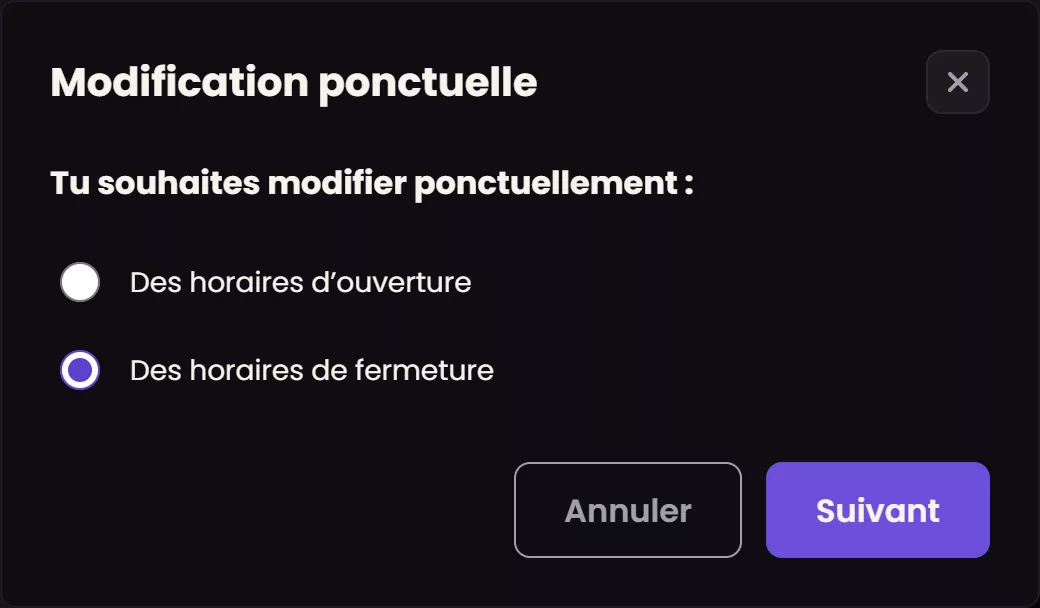
- Choose "Closing hours", then "Next".
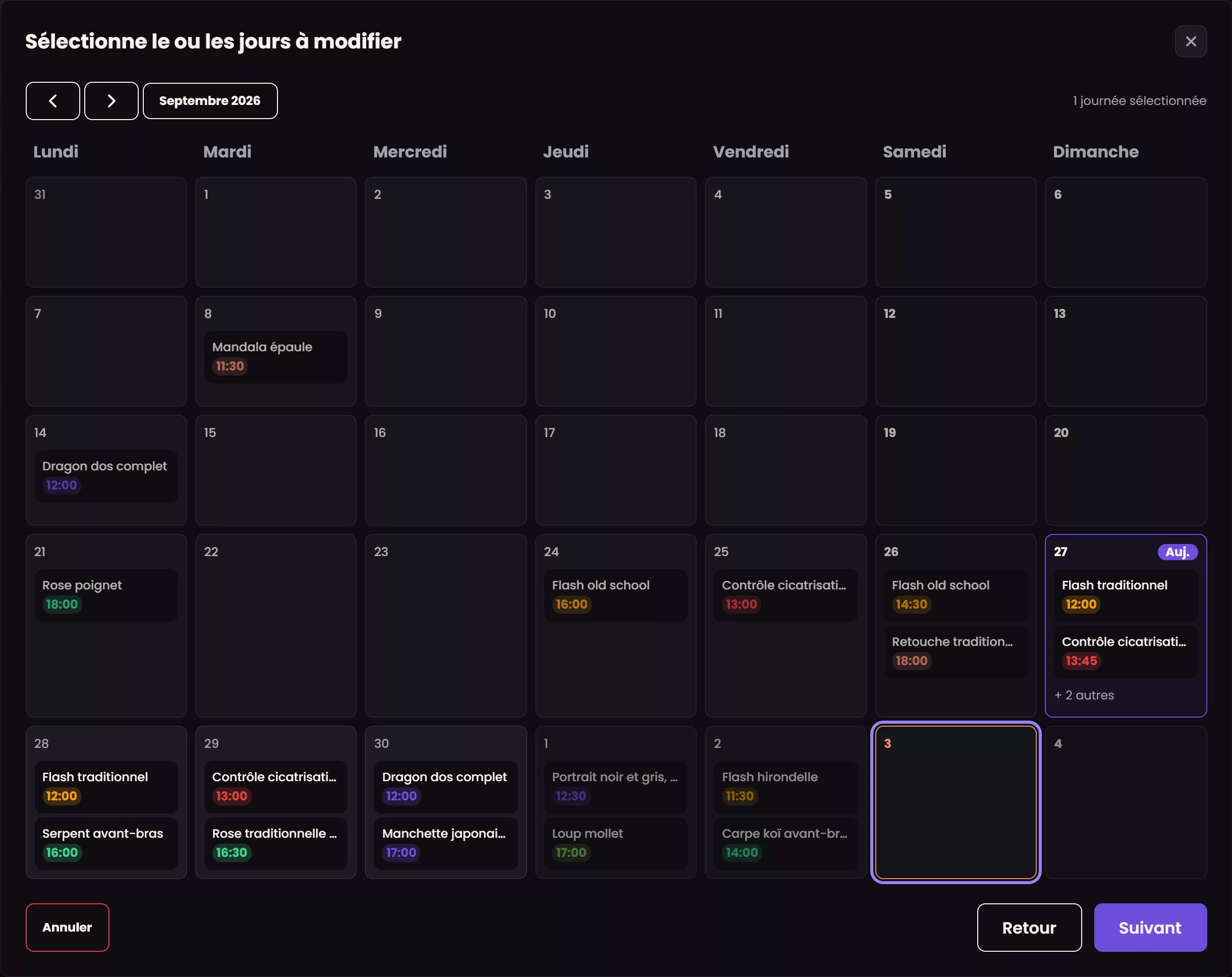
- Click the day or days you want to close in the calendar. They do not have to be consecutive: the counter in the top right shows how many are selected. Each box shows the sessions already scheduled for that day.
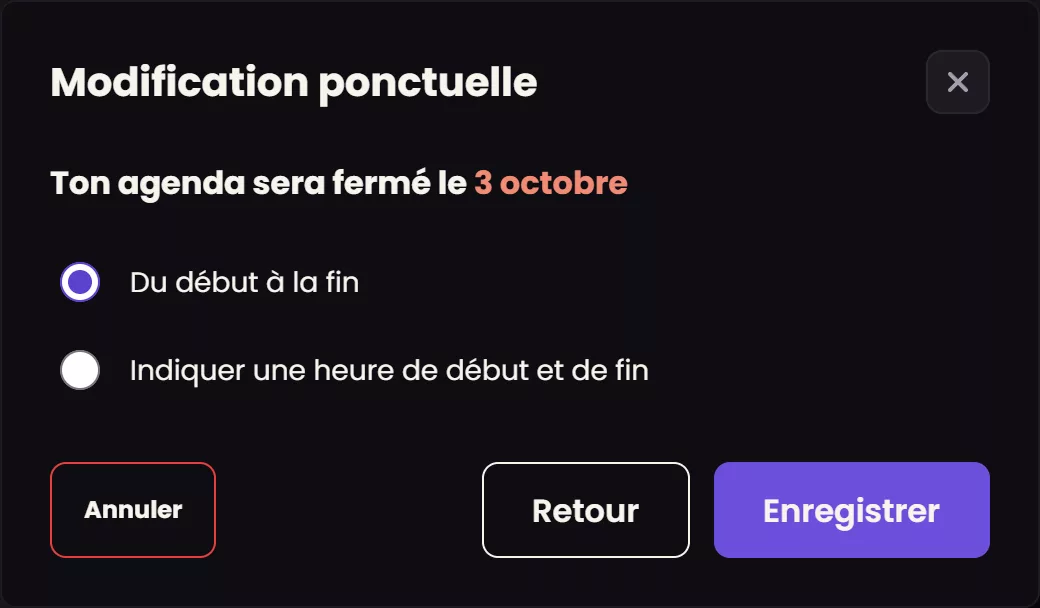
- Choose "From start to finish" to close the entire day, or "Set a start and end time" to close only part of it. The end time must come after the start time.
- Click "Save".
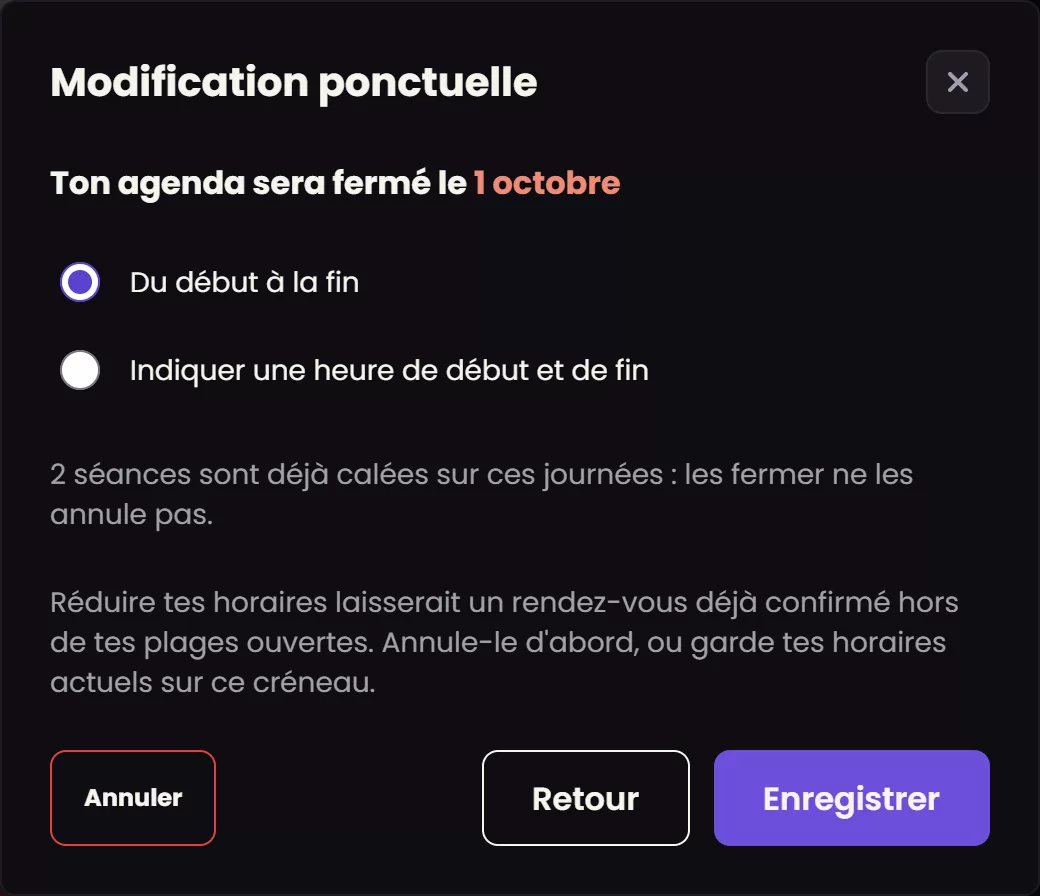
If you have a confirmed appointment that day
Tattooed will not save the closure and asks you to either cancel the appointment first or keep your hours open for that time slot. Before you save, the screen already shows how many sessions are scheduled on the selected days. Check them in your calendar before confirming.
Cancel each affected appointment from its record. If a deposit has been collected, canceling fully refunds the client and notifies them. If the client did not pay a deposit, there is nothing to refund, but your reliability score is affected in the same way. You can then close the day.
Find and remove a closure
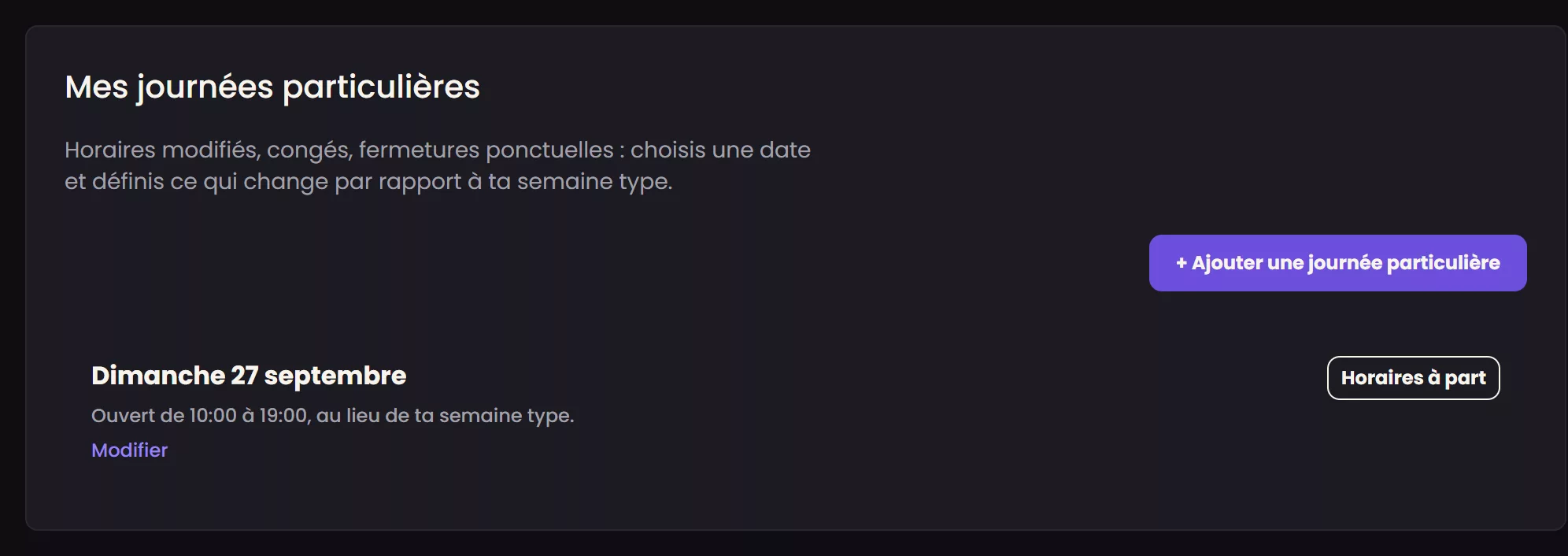
Each modified day appears under "My special days" on the calendar's "Availability" screen. The "+ Add a special day" button opens the same setting, and "Edit" lets you change a day you have already set.
Reopening a day requires no checks: the worst that can happen is that a client is offered a session that day, which is exactly what reopening it is intended to allow.
What the closure does not change
A closure overrides your weekly schedule only for the selected days. The rest of your usual schedule remains unchanged.
See also: How do I set my availability on Tattooed? and Why can't I close a day when I already have a confirmed appointment?